
AutoXiao'er
About Application
Auto Xiao'er



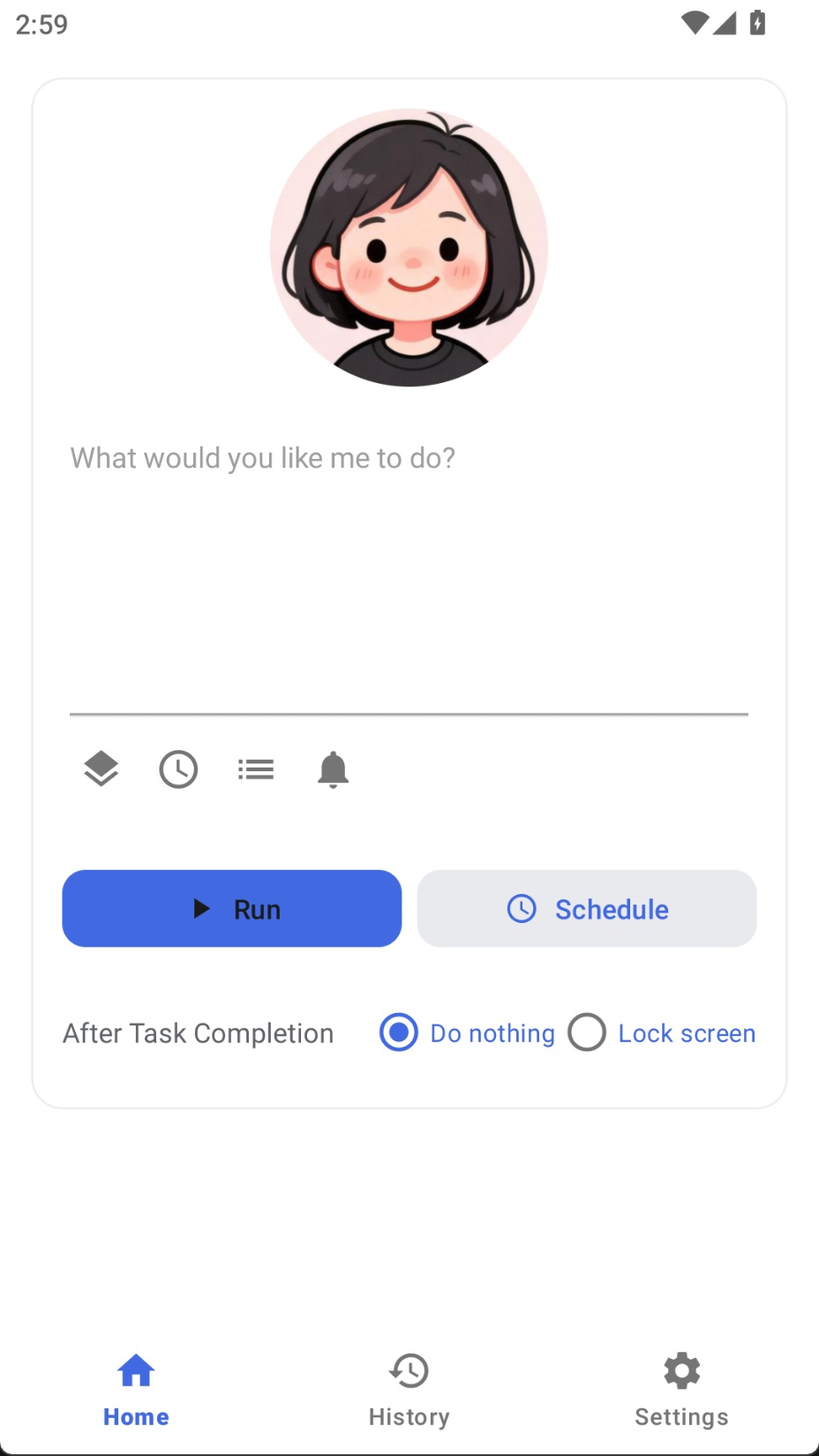
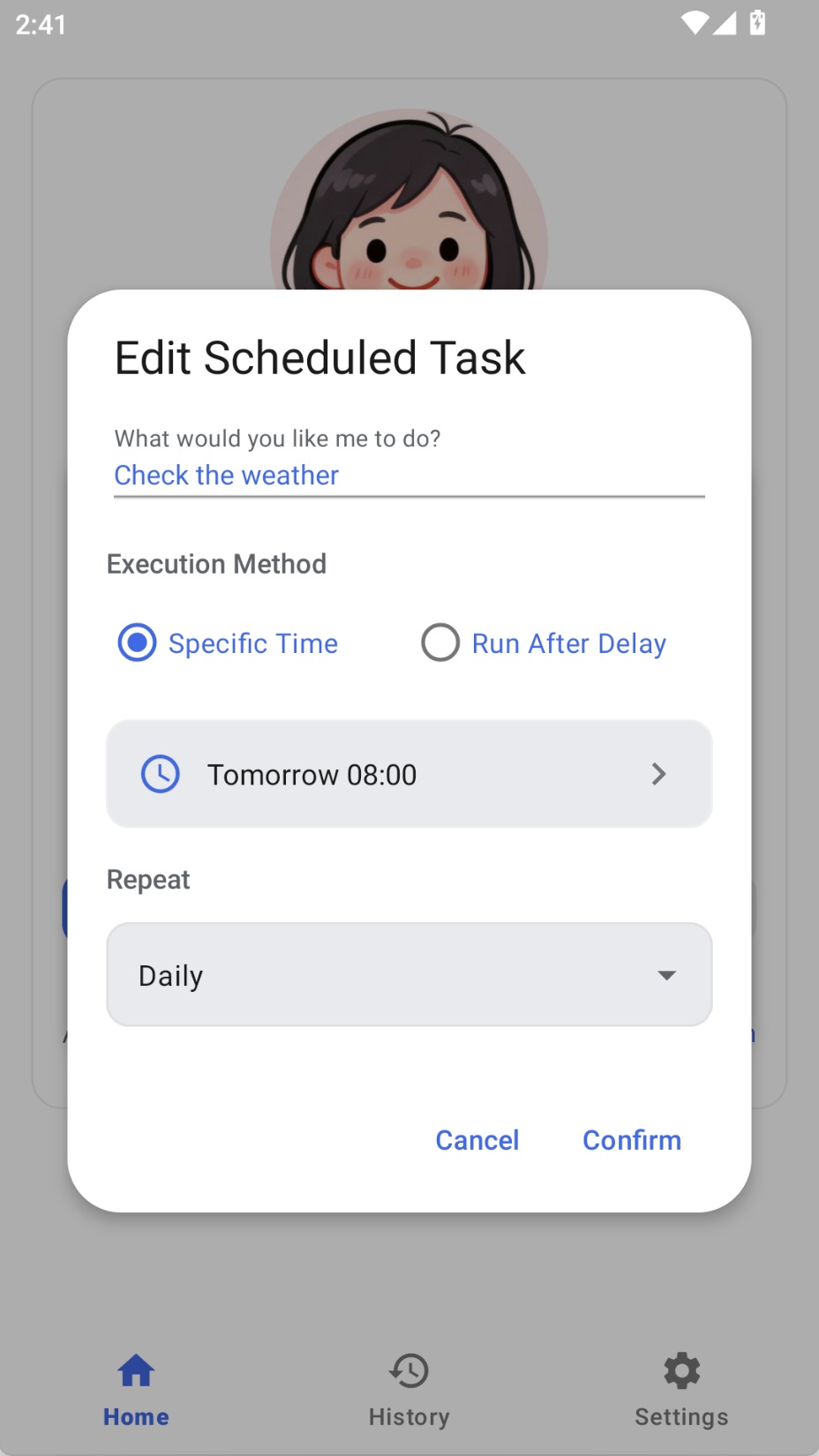
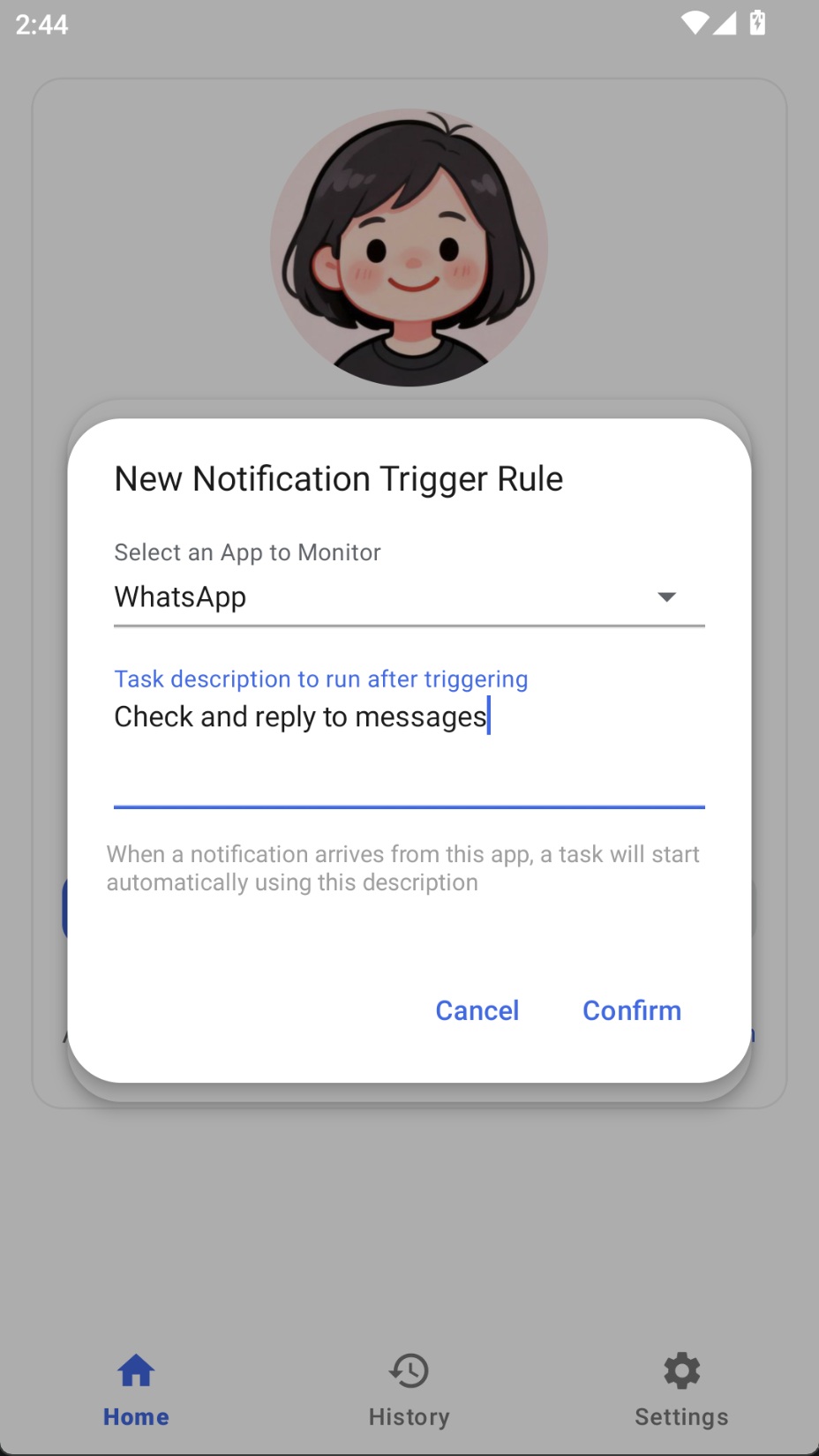
📸 Screenshots
 |  |  |
 |  |  |
📖 Introduction
Auto Xiao'er is a pure on-device native Android agent app that operates your phone visually just like a human, seamlessly integrating with any app. Supports multiple task trigger channels: scheduled tasks, notification triggers, ClawBot, and more. If you happen to have a spare phone, try installing Xiao'er and get a 24/7 cyber companion.
Key Features:
- 🚀 No Computer Required: Runs directly on the phone without ADB connection
- 🎯 Seamless Integration with Social Apps: Vision-based operation works with any social app installed on your phone
- 🤖 Dual Agent: Controller (LLM Agent) + Executor (Phone Agent) collaborate on planning and screen actions
- 🔧 MCP Support: Includes a built-in Amap MCP and supports adding, testing, enabling, disabling, and managing custom MCP servers
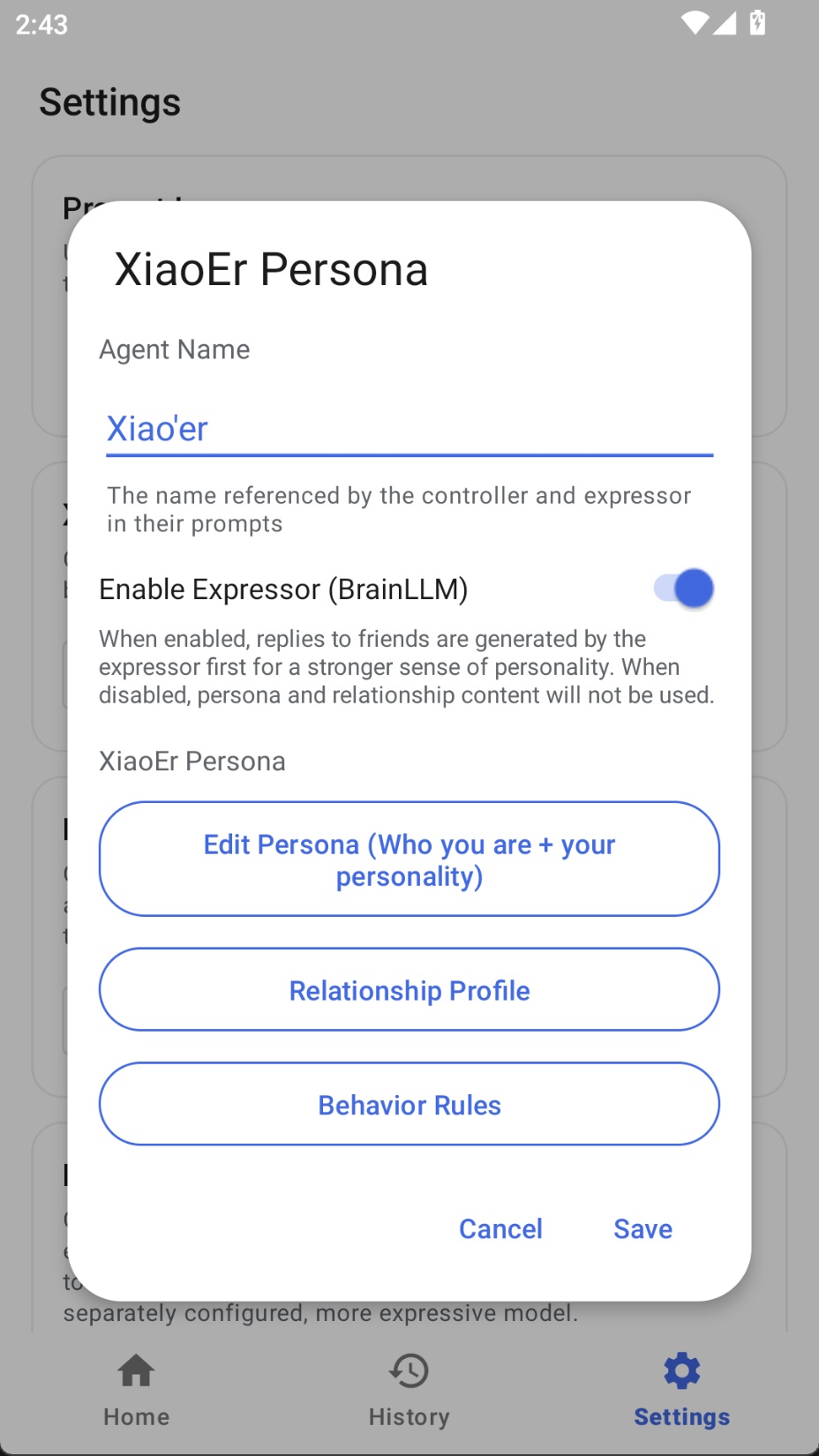
- 🎭 Optional Persona: Supports configuring separate prompts and models for persona, unlocking different personalities for Xiao'er
- ⏰ Scheduled Tasks: Supports timed task execution with repeat modes, auto wake screen
- 🔔 Notification Triggers: Monitors specified app notifications and auto-triggers preset tasks
- 📶 WeChat Remote Control: Connect via WeChat QR code scan to control Xiao'er remotely
- 🔒 Dual Control Backends: Supports Shizuku and Android Accessibility Service, with flexible switching in Settings
- 🪟 Floating Window Interaction: Floating window displays task execution progress in real-time
- 📱 Native Experience: Material Design, smooth native Android experience
- 🌐 Bilingual Support: Both the interface and built-in prompts support Chinese and English
- 🔌 Multi-Model Support: Compatible with any model API supporting OpenAI format and image understanding
📋 Features
Core Features
- ✅ Task Execution: Input natural language task descriptions, AI automatically plans and executes
- ✅ Screen Understanding: Screenshot → Vision model analysis → Output action commands
- ✅ Multiple Actions: Click, swipe, long press, double tap, text input, launch apps, etc.
- ✅ Task Control: Pause, resume, cancel task execution
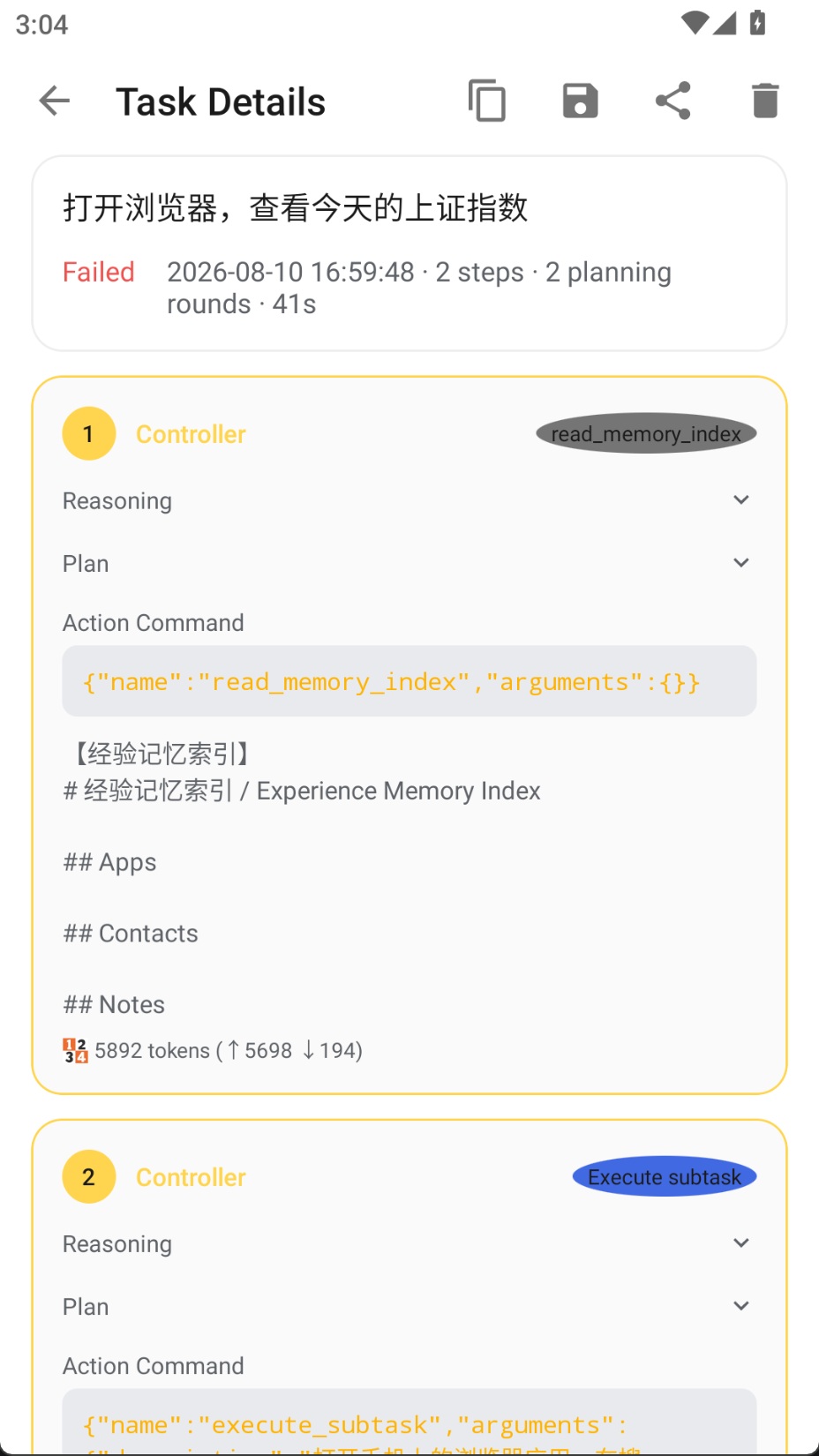
- ✅ History: Save task execution history, view details and screenshots; the model can also actively call tools to look back at history records during task execution
- ✅ Experience Memory: The Agent reads accumulated operation experience at the start of a task and writes new experience to the memory store upon completion; supports categorized storage by app, contact, and custom notes to continuously improve efficiency on repeated tasks
- ✅ Scheduled Tasks: Preset tasks to execute automatically at designated times, supporting one-time and repetitive tasks
- ✅ Notification Triggers: Monitor specific app notifications to automatically trigger corresponding tasks
- ✅ WeChat Remote Control (ClawBot): Connect via WeChat QR code scan, send commands remotely, receive task execution results, and query details or send follow-up instructions
- ✅ Persona Separation: The Controller (LLM Agent) focuses on task breakdown and tool dispatch; when Expresser (BrainLLM) is configured separately, it generates natural-language messages to friends or users, with persona and relationship context on the expresser side while the controller can stay in a neutral scheduling voice
- ✅ Expresser Wording (BrainLLM): When enabled, outgoing text can be polished via
request_brainusing persona and relationship archives; can use a different provider/model from the controller, e.g. a text model better at dialogue and role-play - ✅ Data Migration: Import and export personas, prompts, scheduled tasks, MCP configurations, and other data for easy migration between phones (API keys and other sensitive information are not exported)
User Interface
- ✅ Main Screen: Task input, status display, quick actions
- ✅ Floating Window: Real-time display of execution steps, thinking process, action results
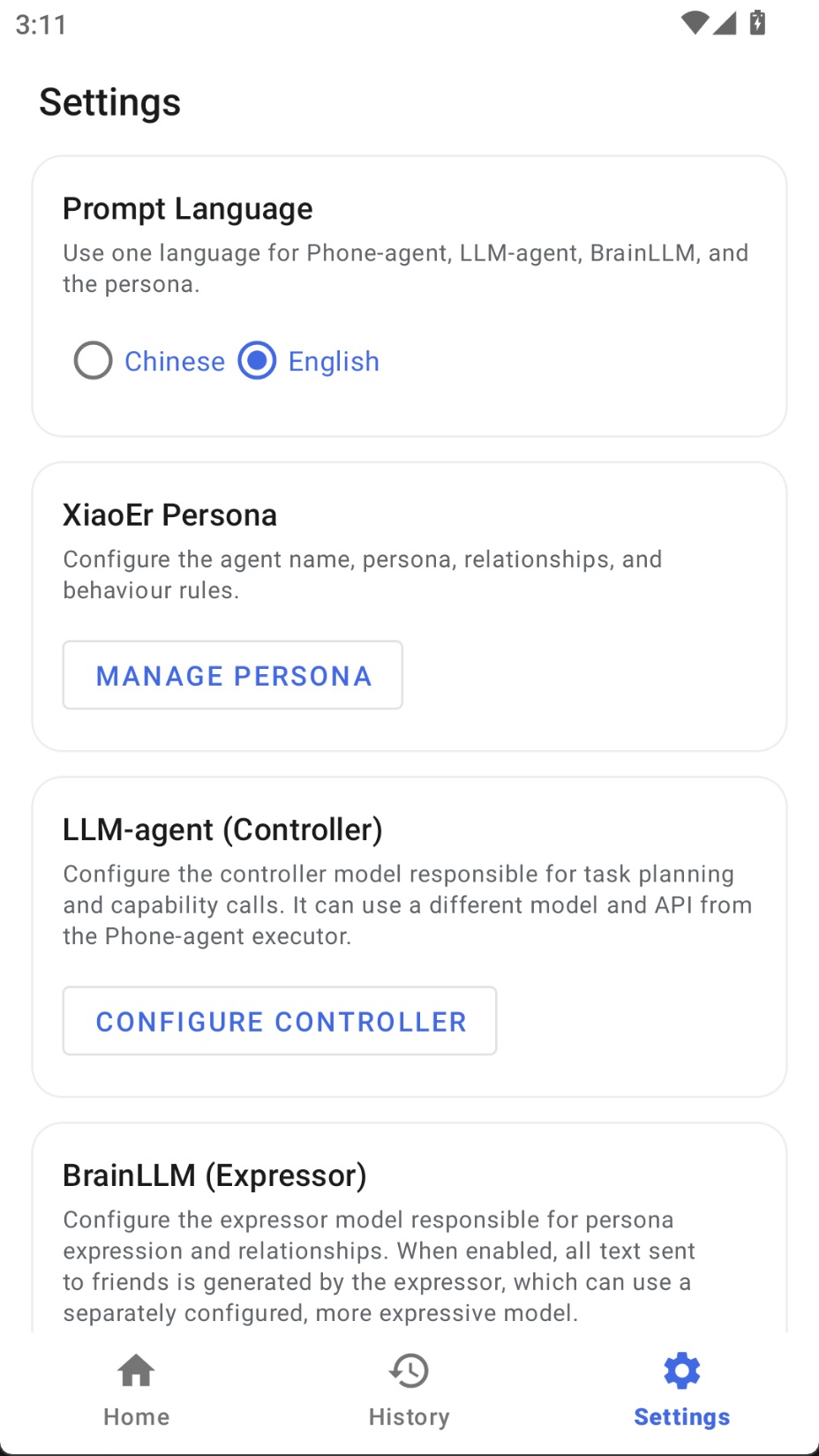
- ✅ Settings Page: Model configuration, Agent parameters, multi-profile management
- ✅ History Page: Task history list, detail view, screenshot annotations
Advanced Features
- ✅ Multi-Model Configuration: Support saving multiple model configuration profiles for quick switching
- ✅ Custom Prompts: Support custom system prompts
- ✅ Quick Tile: Notification bar quick tile, fast access to floating window
- ✅ Log Export: Export debug logs with automatic sensitive data sanitization
📱 Requirements
- Android Version: Android 7.0 (API 24) or higher
- Control Method (choose one):
- Shizuku: Install and activate Shizuku for more complete system-level controls
- Accessibility Service: No additional app required; enable "Accessibility → Auto Xiao'er" in system Settings
- Network: Connection to model API service (supports any OpenAI-compatible vision model)
- Permissions:
- Overlay permission (for floating window)
- Network permission (for API communication)
- Background running permission (for background task execution)
- Shizuku permission (required when using the Shizuku backend, for system operations)
- Accessibility Service permission (required when using the Accessibility backend, for taps, swipes, text input, and other screen operations)
- Notification listening permission (optional, for notification trigger feature)
🚀 Quick Start
Step 1: Choose a Control Method
Auto Xiao'er supports both Shizuku and Android Accessibility Service. Choose either method for setup, and switch between them any time in Settings.
Option A: Shizuku Control (Optional)
Shizuku provides more complete system-level controls, making it suitable for tasks that need key events such as volume or power buttons.
Download and Install
Activation Methods (Choose One)
| Method | Use Case | Persistence |
|---|---|---|
| Wireless Debug | Recommended, no PC needed | Re-pair after reboot |
| ADB Connection | When PC is available | Re-execute after reboot |
| Root Permission | Rooted devices | Permanent |
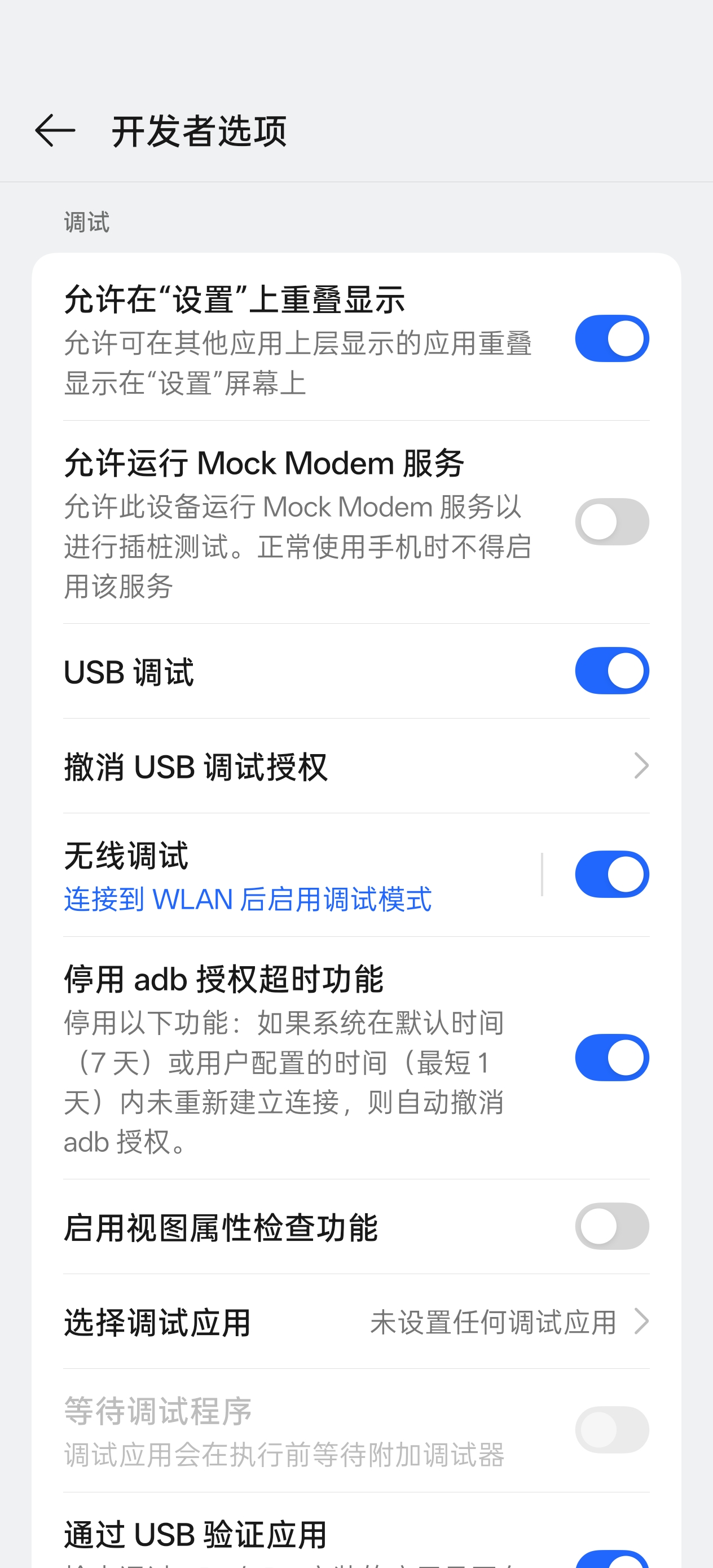
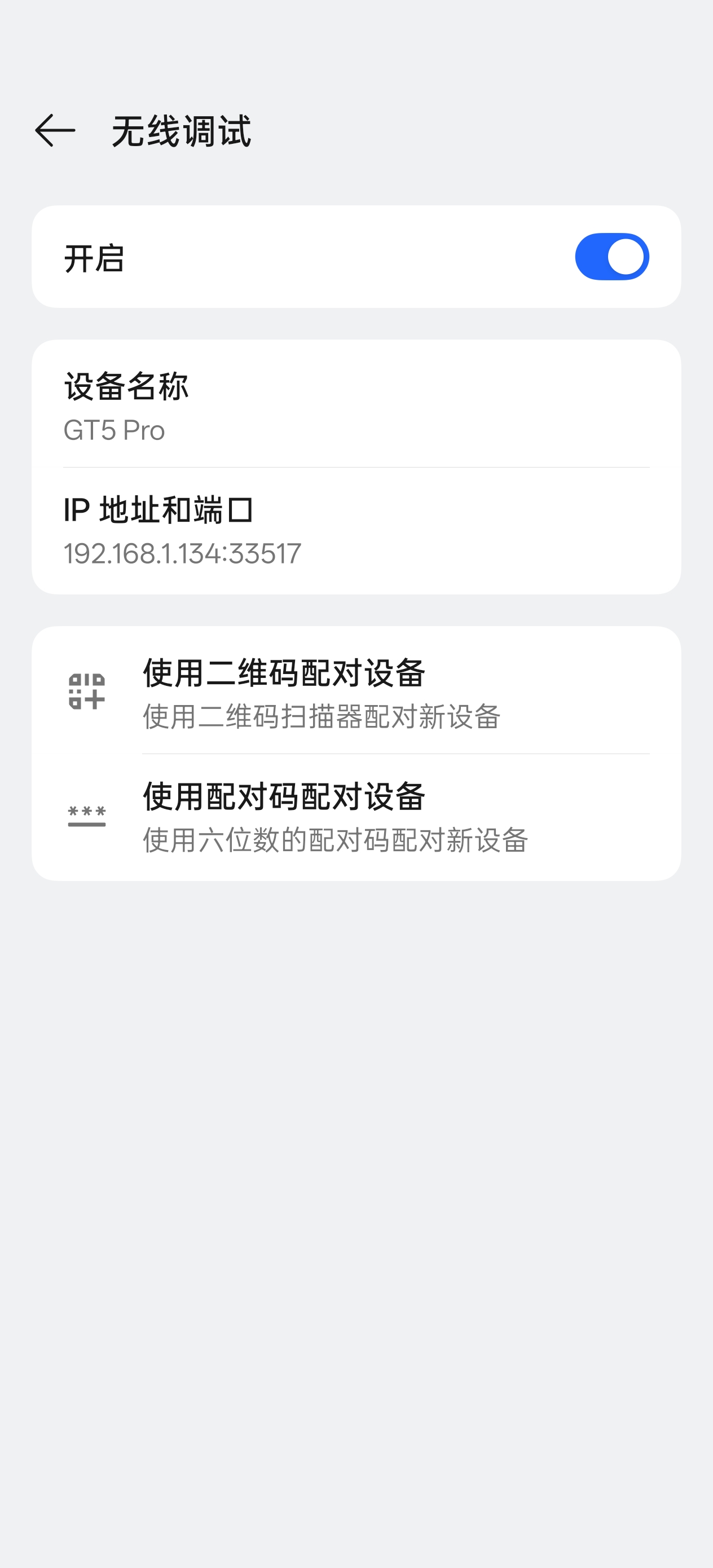
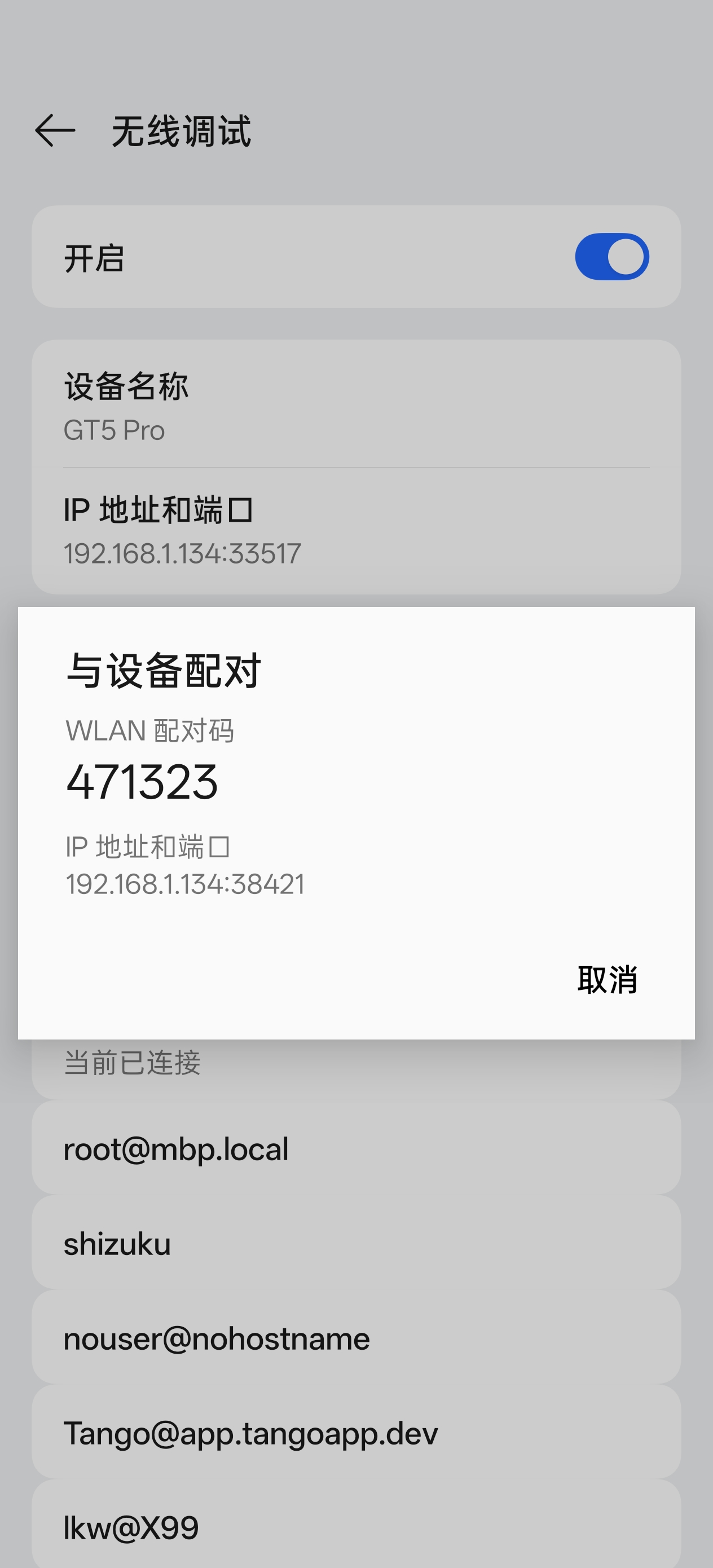
Wireless Debugging Activation Steps (Recommended)
- Connect to any WiFi network
- Go to phone "Settings" → "Developer Options"
- Enable "Wireless Debugging"
- Tap "Pair device with pairing code"
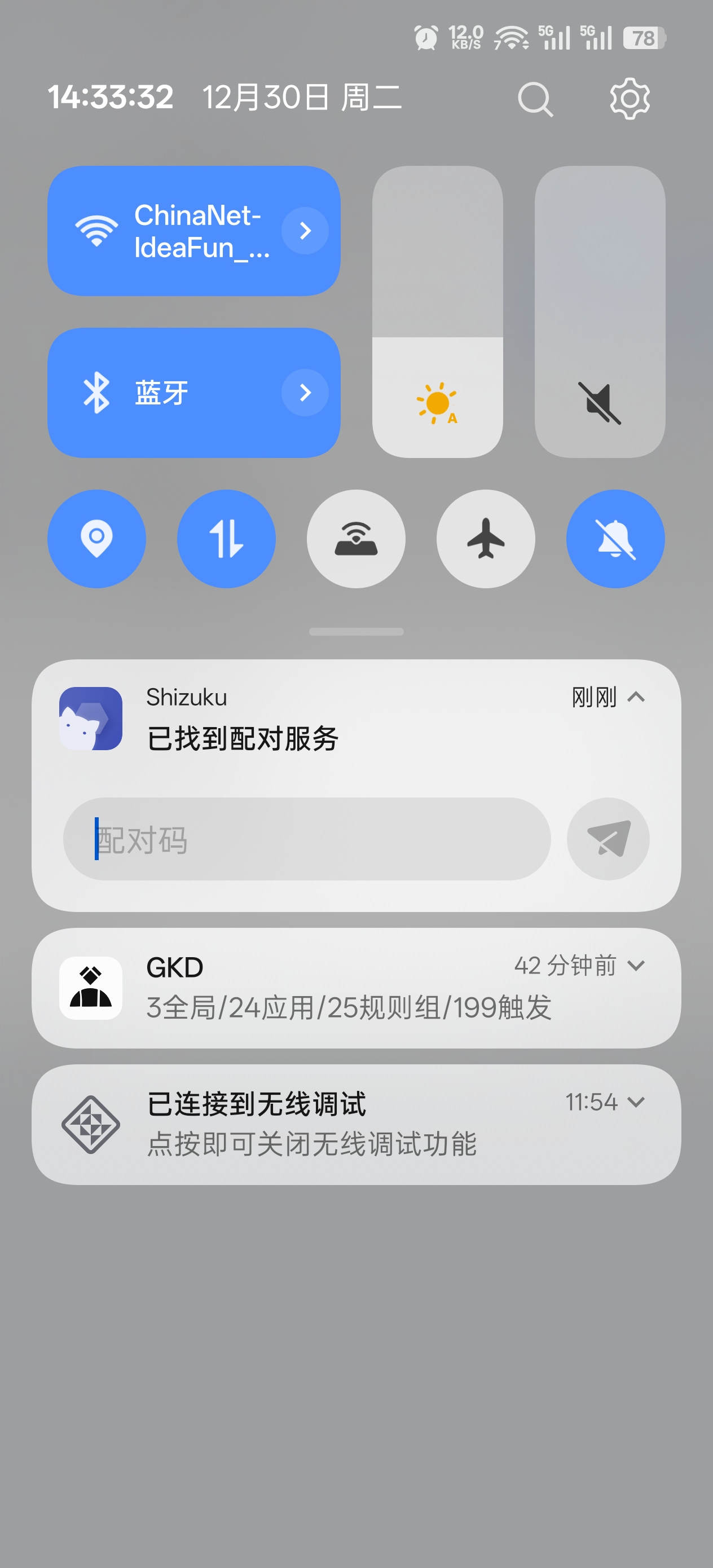
- Wait for Shizuku notification to appear, enter the pairing code in the notification
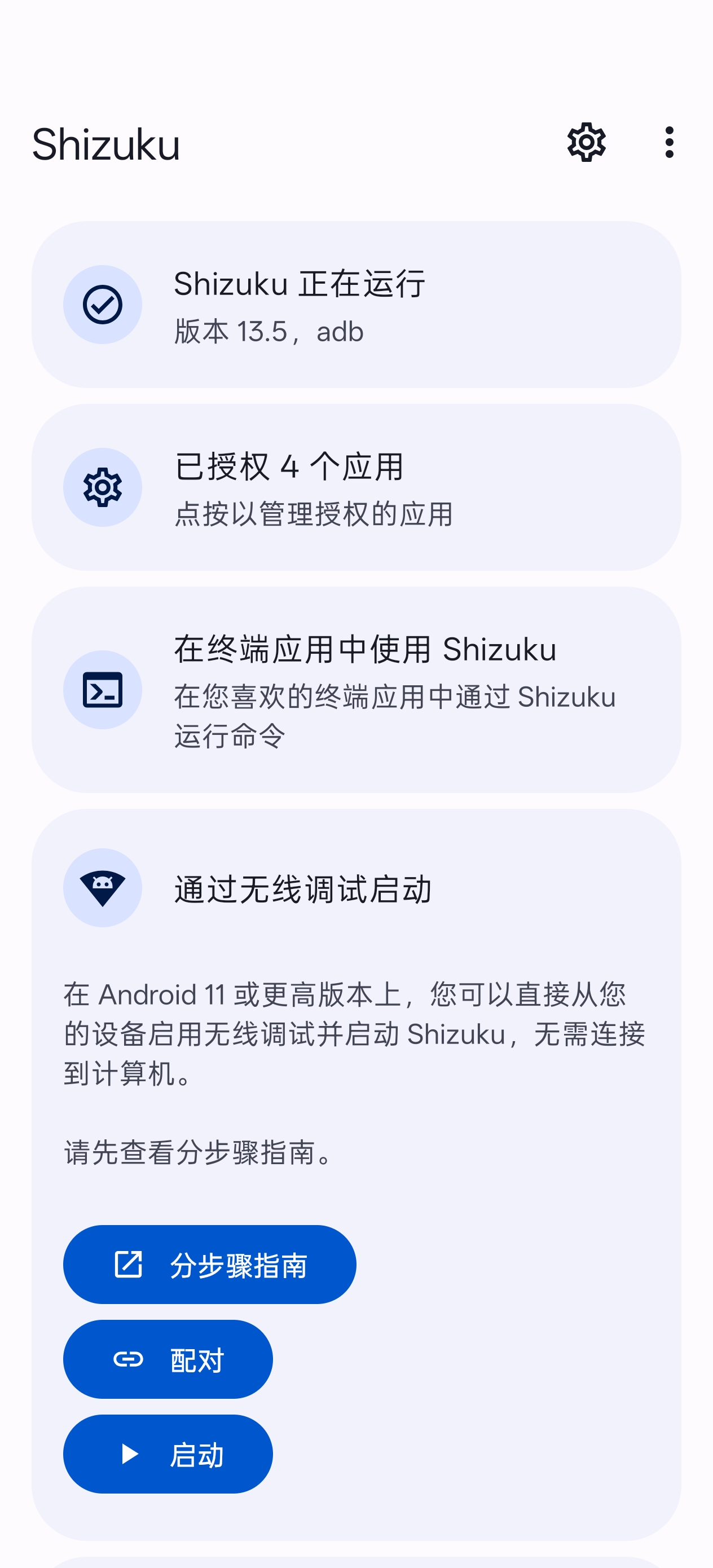
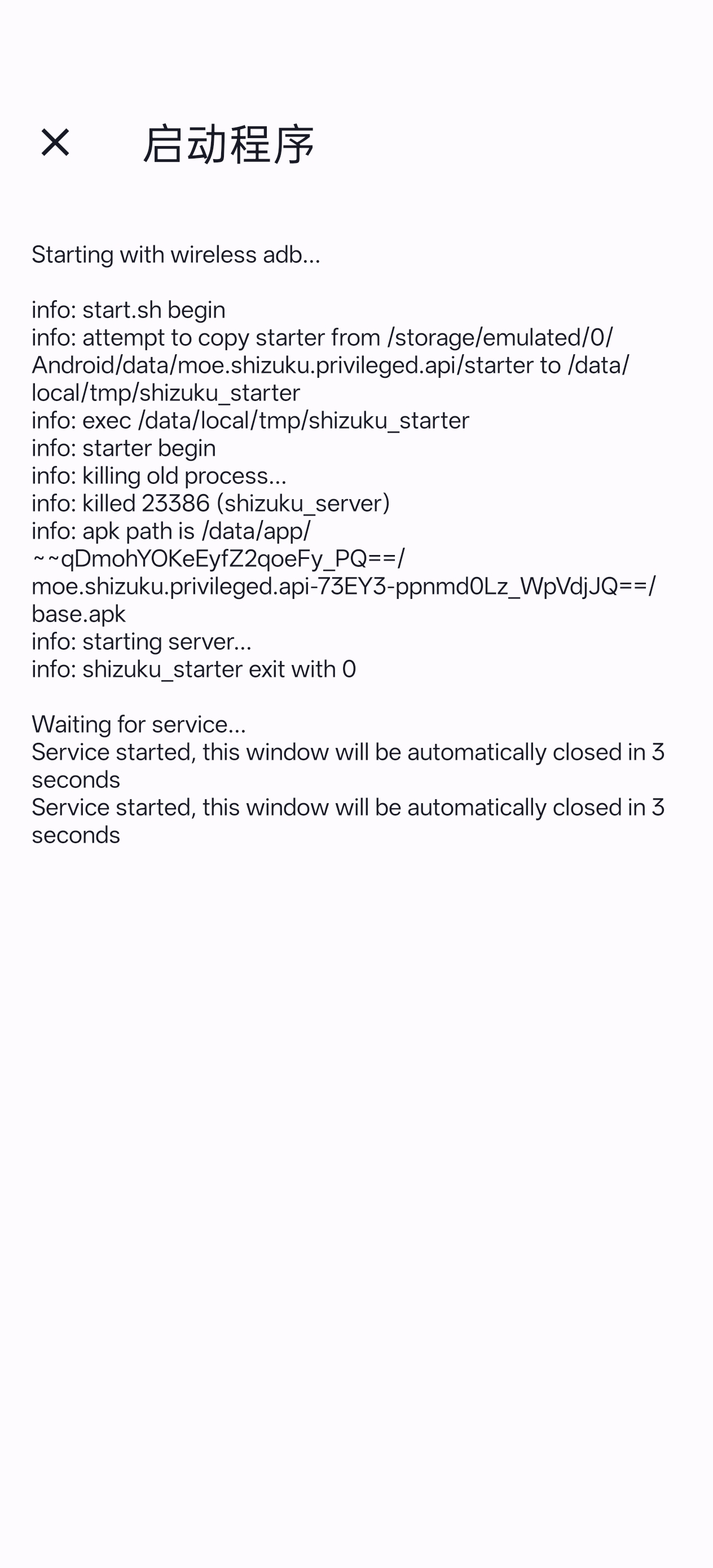
- Open Shizuku and tap "Start", wait for it to complete
- When Shizuku shows "Running", activation is successful
 |  |  |
 |  |  |
💡 Tip: If you can't find Developer Options, go to "About Phone" and tap "Build Number" multiple times to enable it.
Option B: Accessibility Control (Recommended for Quick Setup)
No Shizuku installation is required. In your phone's "Settings" → "Accessibility", find "Auto Xiao'er" and enable its Accessibility Service.
Control Method Comparison
| Method | Advantages | Notes |
|---|---|---|
| Shizuku | More complete system-level controls, including volume and power key events | Requires installing and activating Shizuku; wireless-debugging activation must be restarted or paired again after a reboot |
| Accessibility Service | No additional app or ADB required; usable as soon as the service is enabled | Does not support volume-key injection; power operations lock the screen |
Step 2: Install Auto Xiao'er
- Download the latest APK from Releases Page
- Install the APK and open the app
Step 3: Grant Required Permissions
After opening the app, grant the following permissions in order:
| Permission | Purpose | Action |
|---|---|---|
| Shizuku Permission (when using Shizuku) | Execute system-level screen operations | Tap "Authorize" → Always Allow |
| Accessibility Service permission (when using Accessibility) | Execute taps, swipes, text input, and other screen operations | Go to system "Accessibility" → Enable "Auto Xiao'er" |
| Overlay Permission | Display task execution window | Tap "Authorize" → Enable toggle |
| Keyboard Permission | Input text content | Tap "Enable Keyboard" → Enable Xiao'er Keyboard |
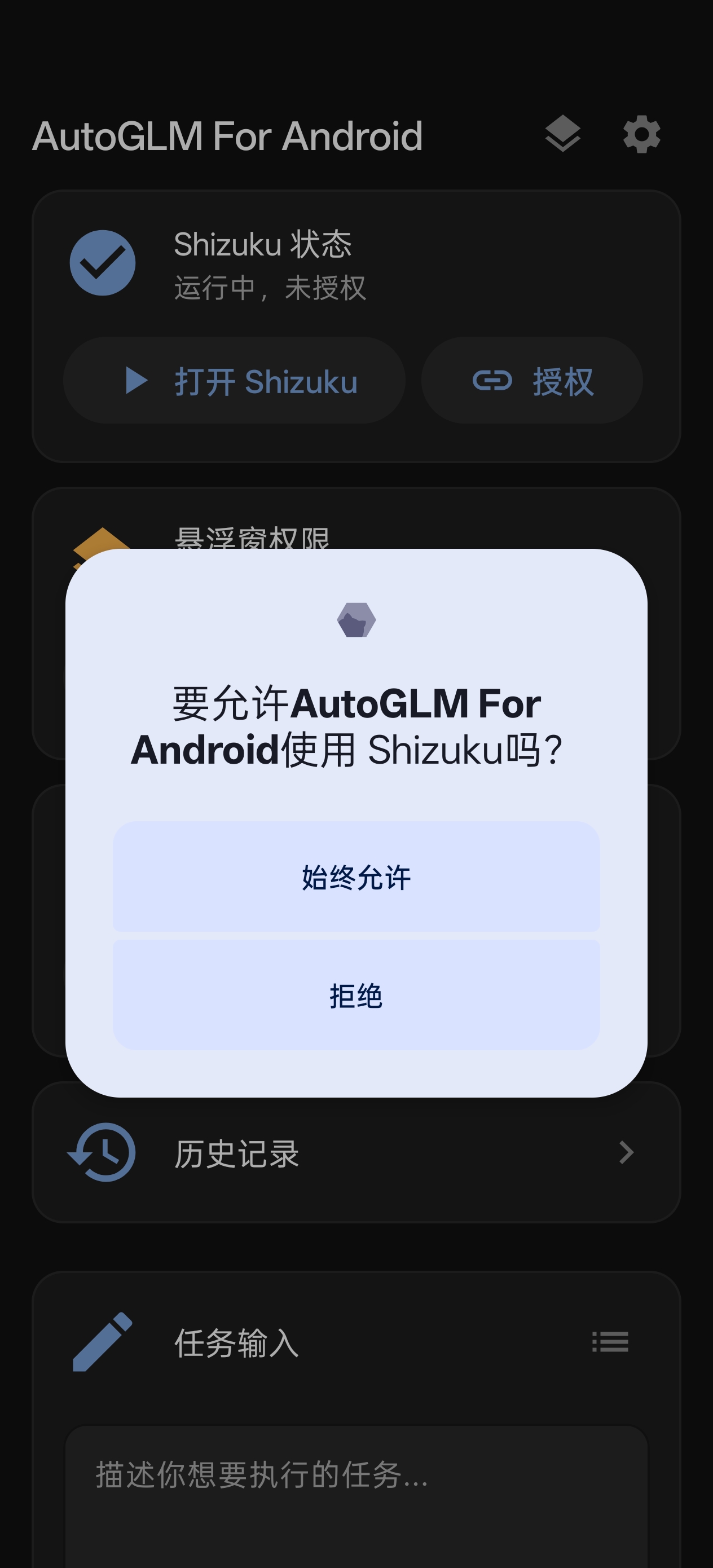 | 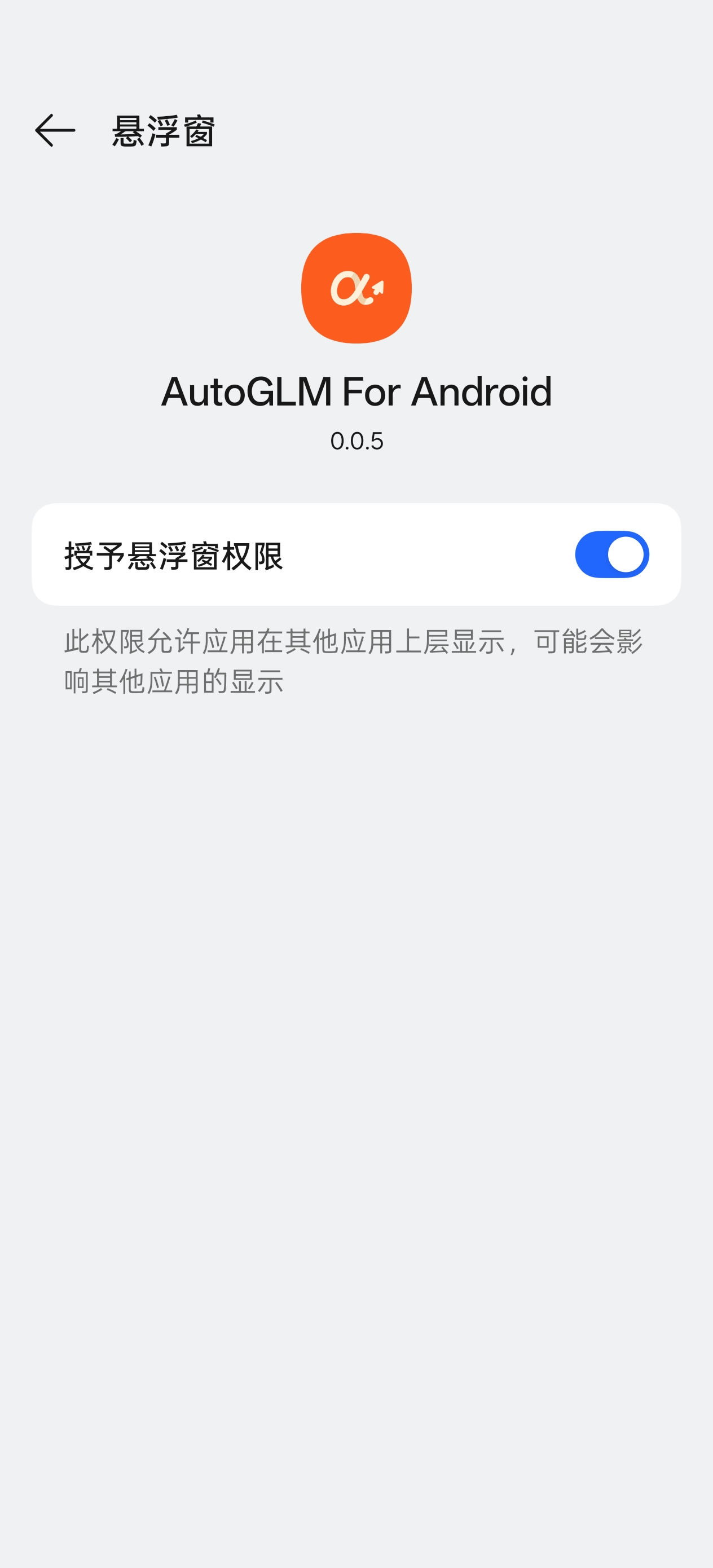 | 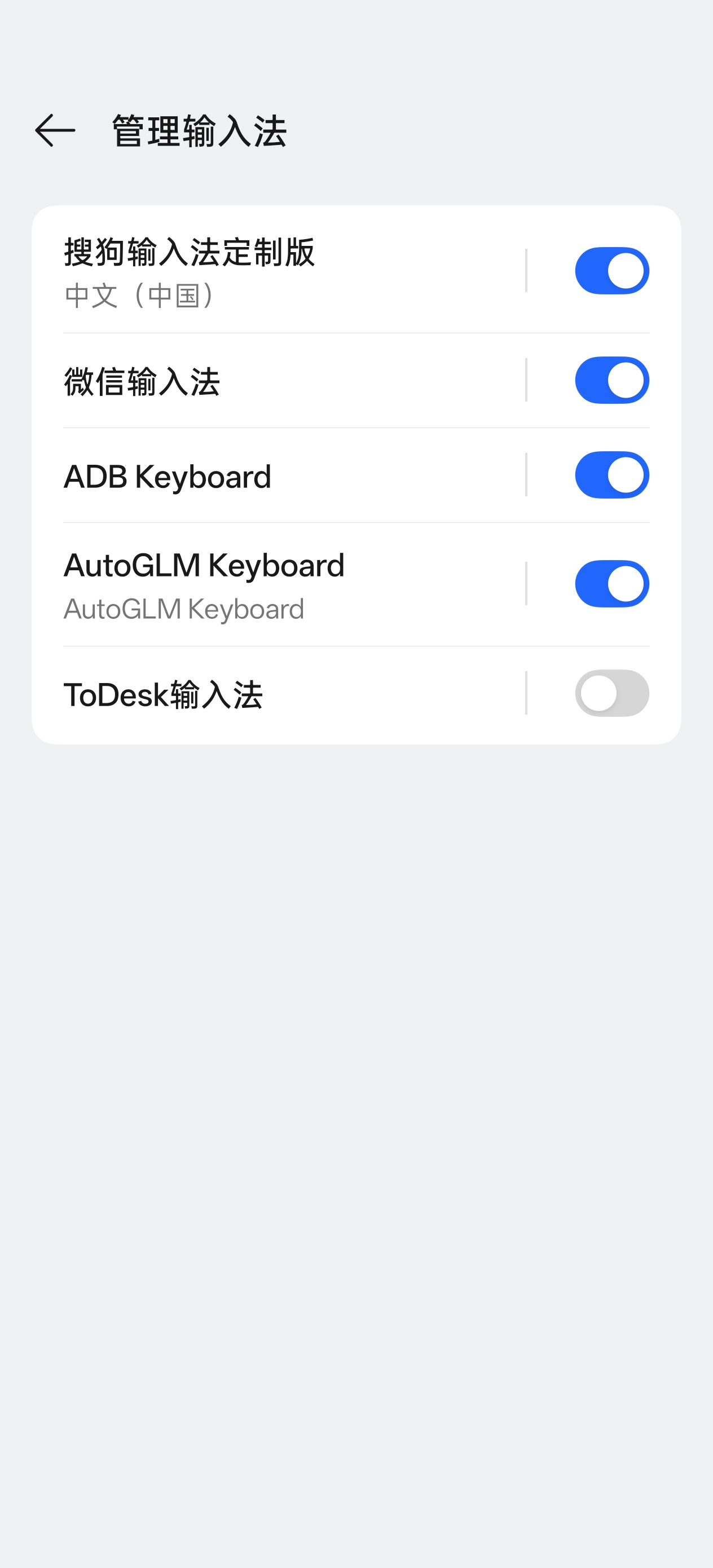 |
💡 Tip: If overlay permission cannot be granted, go to app details page, tap "Menu (top right)" → Allow restricted settings, then try granting overlay permission again.
Step 4: Configure Model Service
Go to "Settings" page and configure the AI model API.
This app uses a dual-model, dual-agent architecture, with an optional standalone Expresser (BrainLLM):
| Role | Responsibility | Recommended Model |
|---|---|---|
| LLM Agent (Controller) | Receives user tasks, performs high-level planning via ReAct loop, breaks complex tasks into sub-tasks, and can review sub-task results using screenshots | A multimodal LLM with image understanding is recommended |
| Phone Agent (Executor) | Awaits sub-tasks, analyzes screenshots and executes actions | Vision model with image understanding (e.g. autoglm-phone) |
| BrainLLM (Expresser · optional) | Persona expression, relationships, and human-facing wording; when enabled, outgoing messages can be generated solely by the expresser | Pure text LLM (same or different provider as the controller; models strong at role-play and dialogue, e.g. doubao-seed-2.0) |
Phone Agent (Executor) and LLM Agent (Controller) APIs are always configured independently; the Expresser is a third independent endpoint, off by default and participates in wording once enabled in Settings.
Phone Agent Configuration (Vision Model)
Recommended Configuration (Zhipu BigModel) 🎉 autoglm-phone model is currently FREE!
| Setting | Value |
|---|---|
| Base URL | https://open.bigmodel.cn/api/paas/v4 |
| Model | autoglm-phone |
| API Key | Get from Zhipu AI Open Platform |
Alternative Configuration (ModelScope)
| Setting | Value |
|---|---|
| Base URL | https://api-inference.modelscope.cn/v1 |
| Model | ZhipuAI/AutoGLM-Phone-9B |
| API Key | Get from ModelScope |
After configuration, tap "Test Connection" to verify the settings.
LLM Agent Configuration (Controller · Planning LLM)
Go to Settings → LLM Agent Configuration to set up the controller's large language model:
| Setting | Description |
|---|---|
| Base URL | OpenAI-compatible API endpoint |
| Model | Any OpenAI-compatible LLM; a multimodal model with image understanding is recommended |
| API Key | API key for the corresponding service |
| Max Planning Steps | Maximum ReAct iterations for the LLM loop, default 20 |
| Custom System Prompt | Overrides the built-in controller prompt to tune behaviour |
💡 LLM Agent config is strictly independent from Phone Agent config — any OpenAI-compatible LLM can be used.
Under Advanced Settings, enable Phone-agent Screenshot Review to have the LLM Agent check the final Phone Agent screenshot after each sub-task, improving task success rates. Choose either "Review on Failure" or "Review Every Round"; this feature requires visual input support and increases token usage.
BrainLLM Configuration (Expresser)
Go to Settings → Configure Expresser (BrainLLM) (or use the expresser toggle under persona settings) for the wording model that works with persona and relationship archives. Fully decoupled from LLM Agent (Controller) — different Base URL, model, and API key are supported.
| Setting | Description |
|---|---|
| Enable Expresser | When off, human-facing text is generated by the controller model; when on, the controller must obtain expresser output via request_brain before filling send-related actions |
| Base URL | OpenAI-compatible API root (/chat/completions) |
| Model | Pure text model name (e.g. glm-4-plus) |
| API Key | API key for this service (can differ from controller and Phone Agent) |
| Max Tokens / Temperature | Limits expresser output length and sampling randomness |
| Custom System Prompt | When set, overrides the built-in expresser prompt for persona and speaking style |
💡 Persona, relationships, and behavior rules are maintained under Manage Persona; expresser prompts work with them for control vs. wording separation.
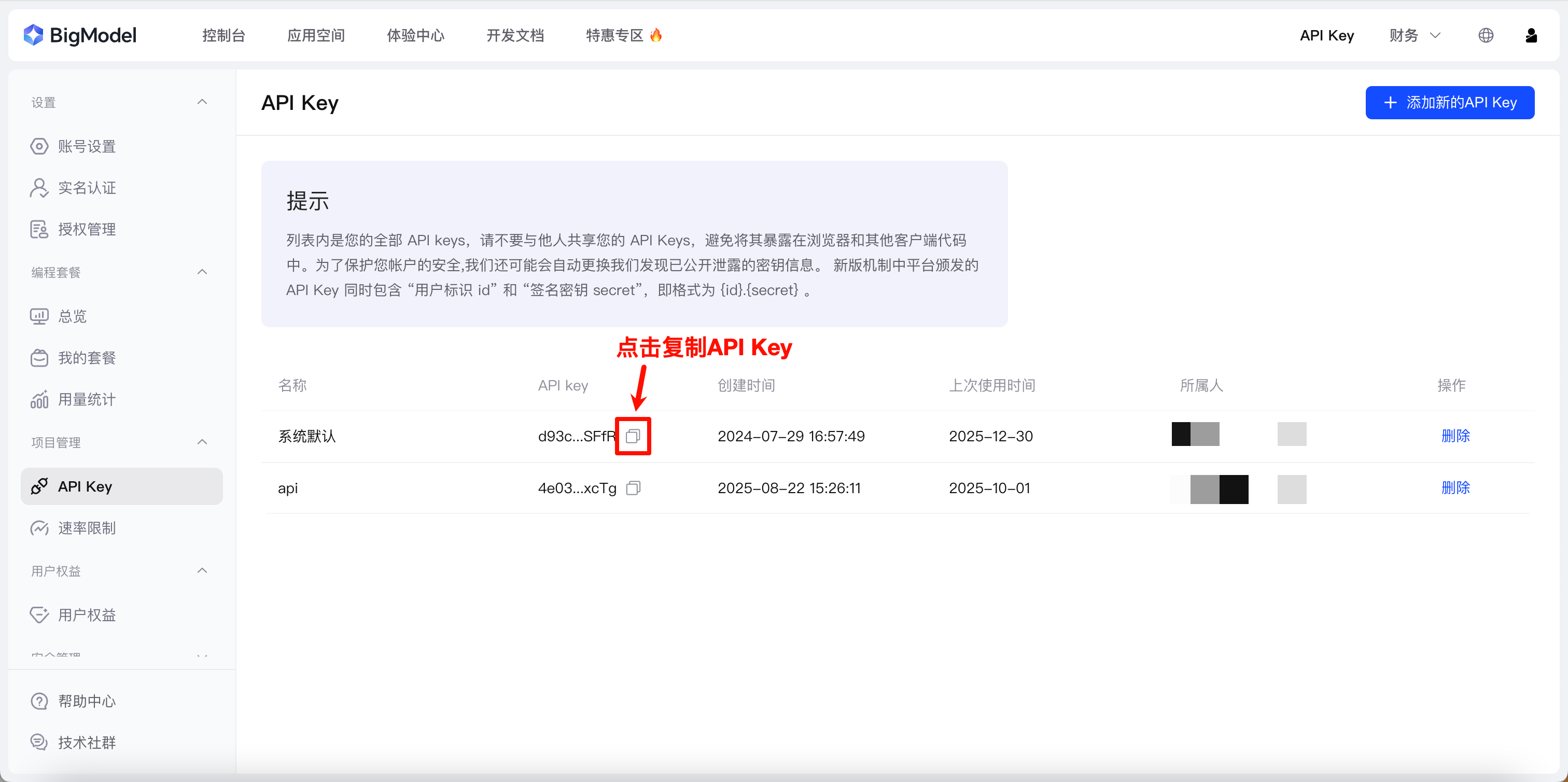 |
Using Other Third-Party Models:
Any model service can be used as long as it meets the following requirements:
- API Format Compatible: Provides OpenAI-compatible
/chat/completionsendpoint - Multi-modal Support: Supports
image_urlformat for image input - Image Understanding: Can analyze screenshots and understand UI elements
Phone Agent (Executor) must meet all requirements above. LLM Agent (Controller) only needs requirement 1; it must also meet requirements 2 and 3 when Phone-agent Screenshot Review is enabled in Advanced Settings to receive and review screenshots. BrainLLM (Expresser) also only needs requirement 1 (standard text chat).
⚠️ Note: Non-AutoGLM models may require custom system prompts to output the correct action command format. You can customize system prompts in Settings → Advanced Settings.
Step 5: Start Using
- Enter a task description on the main screen, e.g., "Open WeChat and send a message to File Transfer: test"
- Tap "Start Task" button
- The floating window will automatically appear, showing execution progress
- Watch the AI's thinking process and execution actions
⚠️ Security & Privacy Risks
Please read the following risks carefully before using this app:
Safety Limits Are Prompt-Based
The app's safety restrictions (e.g. refusing to perform dangerous actions) are implemented via AI model system prompts, not hard-coded constraints. This means:
- Prompts can potentially be bypassed by carefully crafted task descriptions (i.e. "prompt injection" attacks)
- Different models vary in how strictly they follow the same prompt
- Do not use this app for high-risk scenarios involving sensitive accounts, financial transactions, or private data
Model API Data Security
- All AI features in this app are powered exclusively by third-party model APIs configured by the user
- The app itself does not collect, upload, or store any user data or screenshots
- Screenshots taken during task execution are sent to your configured model service provider via the API you set up
- Ensure you trust the model service provider you use, and review their privacy policy carefully
Usage Recommendations
- 🔒 Sensitive screens (payment pages, password fields, etc.) trigger system protection and appear as black screenshots
- 👀 When executing tasks involving sensitive operations, keep an eye on the screen and be ready to intervene manually
- 🔑 Do not include passwords, verification codes, or other sensitive information in task descriptions
User Guide && FAQ
📞 Contact
- Email: wxrachel@outlook.com
⭐ Star History
📄 License
This project is licensed under MIT License.
🙏 Acknowledgments
- AutoGLM-For-Android - Luokavin's open-source project
AutoGLM For Android is based on Open-AutoGLM — it transforms the original computer + ADB phone automation into a standalone app running entirely on the phone.
- Open-AutoGLM - Original open-source project
- Shizuku - System permission framework
- Zhipu AI - AutoGLM model provider
If this project helps you, please give it a ⭐ Star!
Specifications
Install via ShizuStore to enable automatic updates and silent installations using Shizuku.
More in AI agents
Other applications in this category